Taking Control of Shadow IT, GenAI Apps, and SaaS Risk with Microsoft Defender for Cloud Apps
The cloud application landscape has shifted dramatically. Where a few years ago “shadow IT” meant someone using Dropbox to move a file, today it means employees uploading sensitive data into generative AI tools, connecting third-party OAuth apps with tenant-wide Mail.ReadWrite permissions, or sharing business data via unmanaged collaboration platforms — often without any awareness that they’re doing something risky.
Microsoft Defender for Cloud Apps (MDCA) is Microsoft’s Cloud Access Security Broker (CASB) and SaaS Security Posture Management (SSPM) solution.
What Defender for Cloud Apps Actually Does
At its core, MDCA gives you two things: visibility and control over cloud application usage across your organization.
Visibility comes from two channels:
- Endpoint telemetry via the Microsoft Defender for Endpoint (MDE) integration — every DNS and network transaction on your managed endpoints flows into Cloud Discovery.
- App Connectors — direct API integrations with SaaS platforms like Microsoft 365, Azure, and many others.
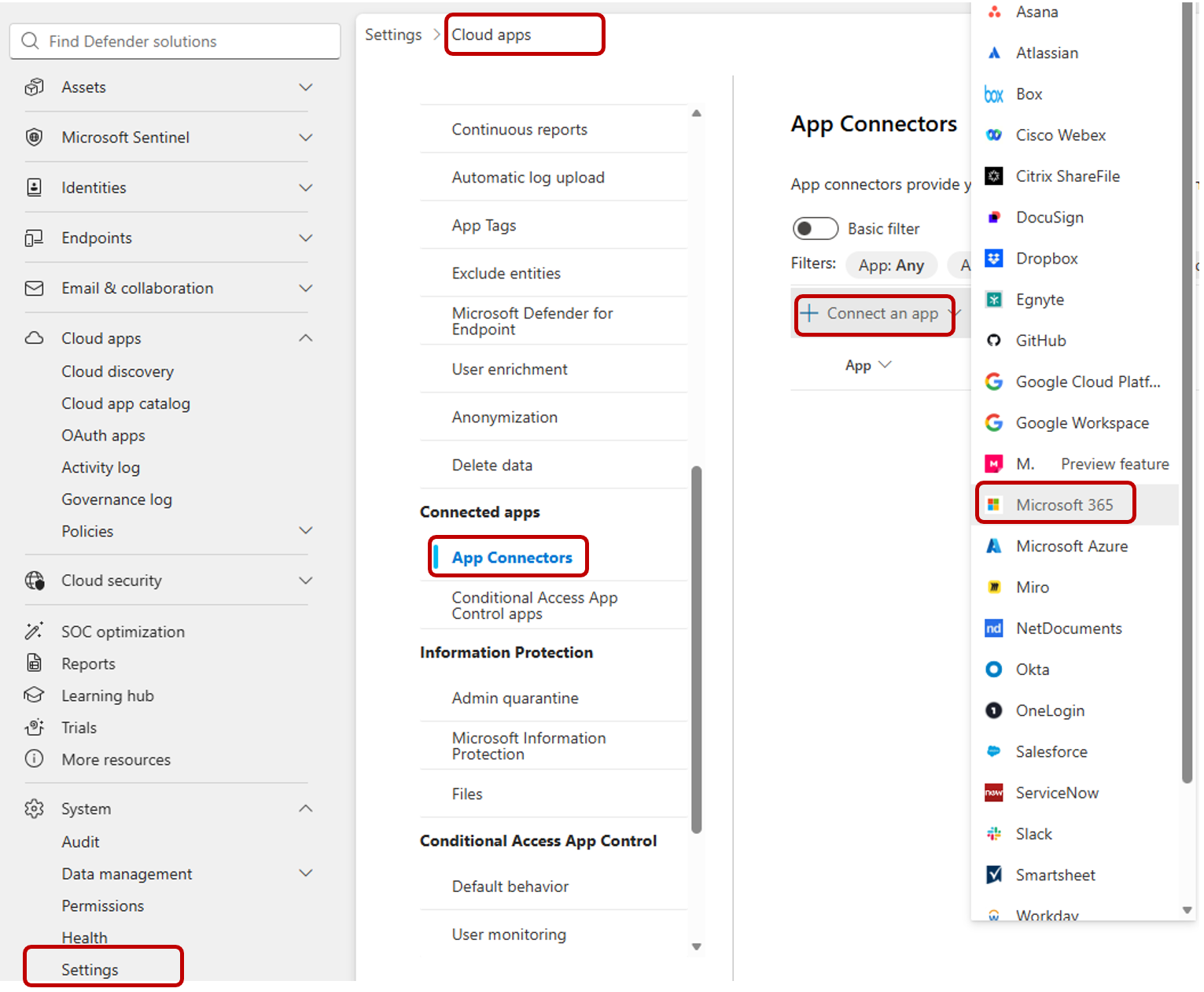
Control is then exercised through a policy engine that can tag discovered apps as Sanctioned (allow), Monitored (warn with bypass), or Unsanctioned (block), with those enforcement decisions pushed back down to endpoints via MDE’s Network Protection and Custom Network Indicators.
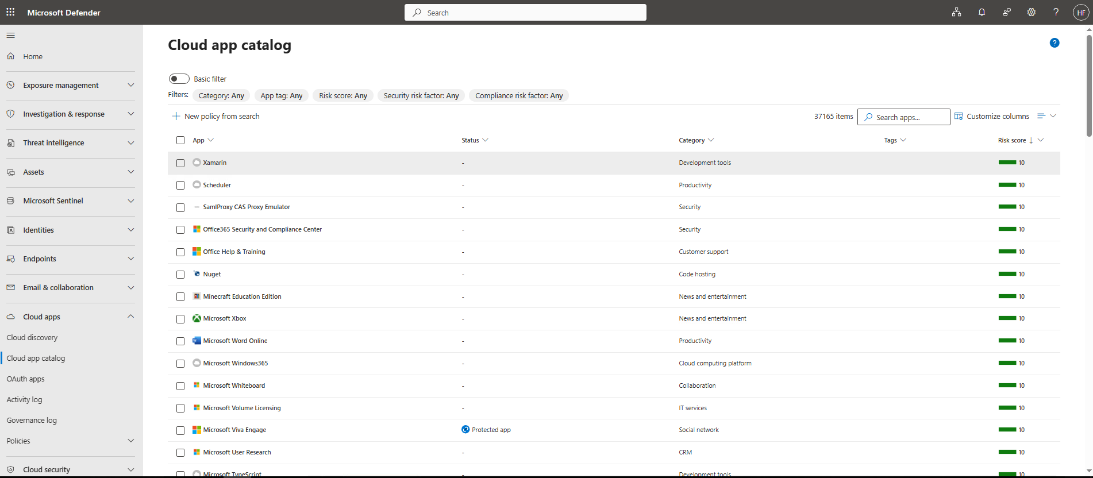
The app catalogue contains more than 31,000 cloud applications, each scored across 90+ risk factors on a 0–10 scale. Zero means highest risk; ten means lowest.
The MDE Integration: Making the Foundation Work
Everything described in this post depends on the integration between MDCA and Defender for Endpoint being properly configured. This is a two-sided handshake, and both sides must be active.
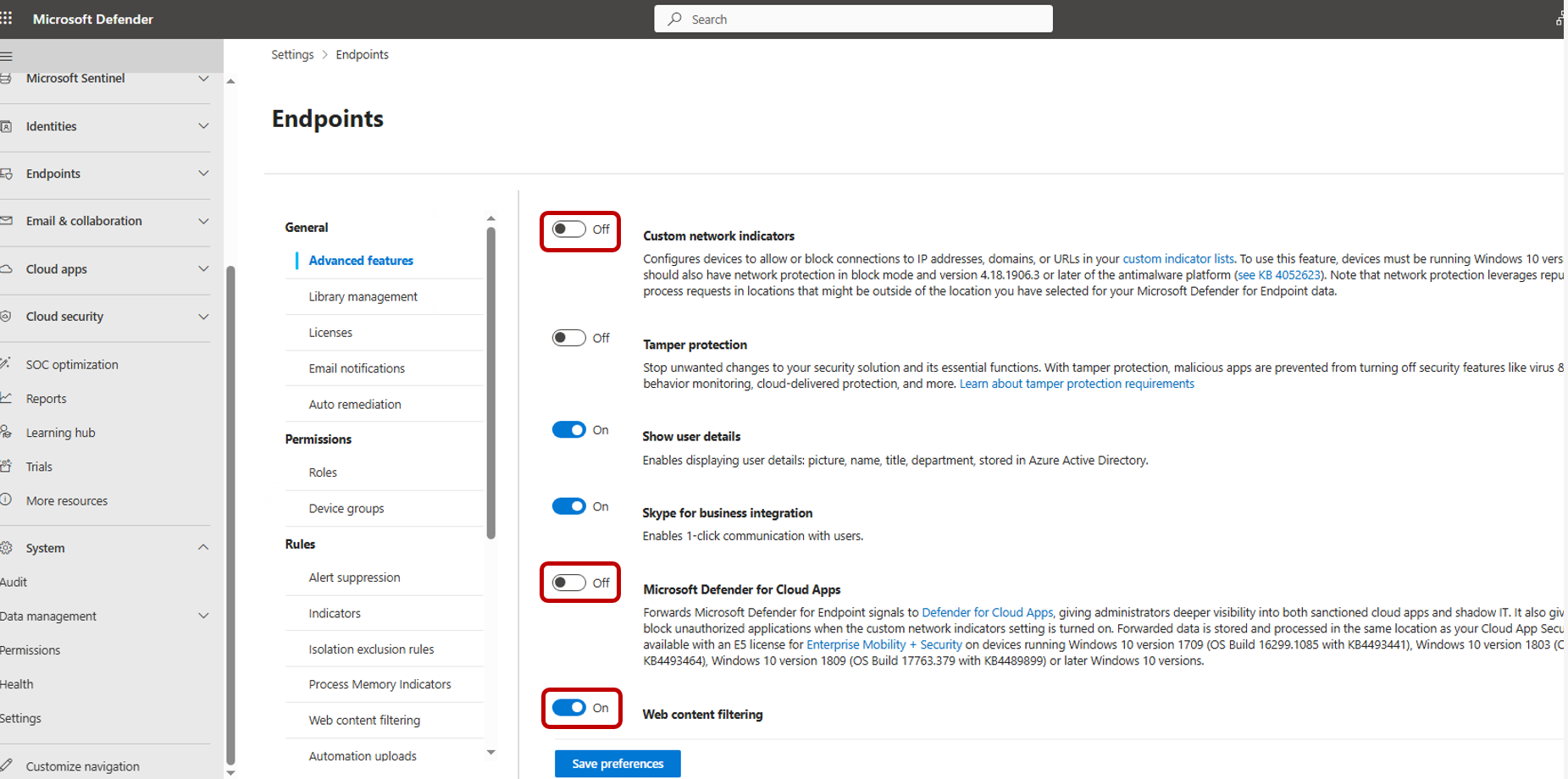
On the Defender for Endpoint side (Settings → Endpoints → Advanced Features):
- Enable Microsoft Defender for Cloud Apps integration — this routes endpoint telemetry into Cloud Discovery.
- Enable Custom Network Indicators — this is what allows MDCA to actually push block/warn URL indicators back to endpoints.
- Enable Web Content Filtering for additional URL categorization coverage.
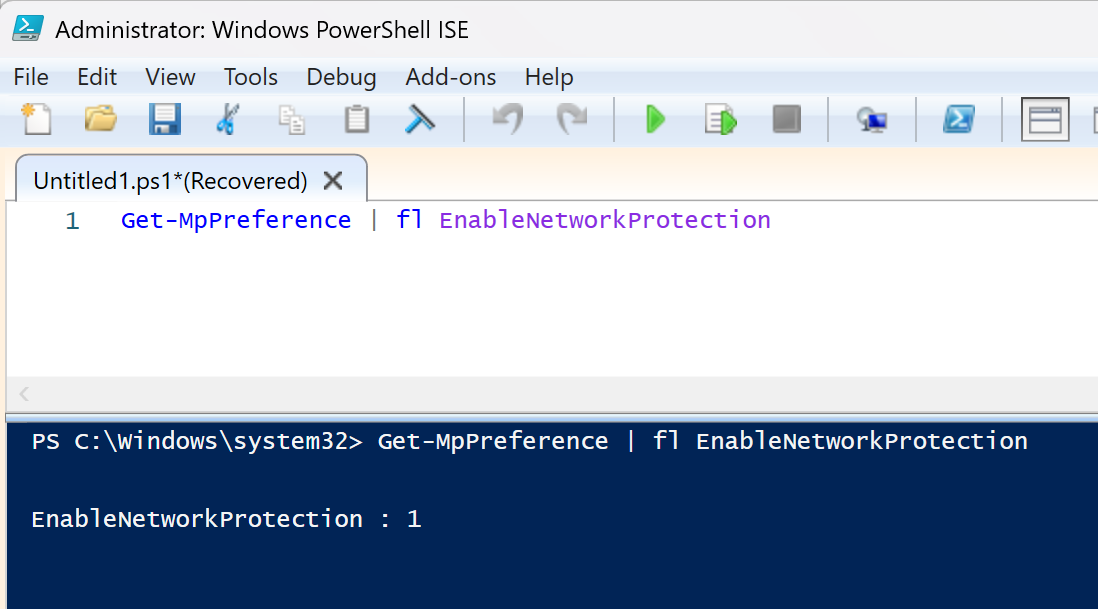
- Set Network Protection to Block Mode — without this, indicators don’t enforce regardless of what MDCA instructs. Deploy this via Intune (value
1is Block Mode).
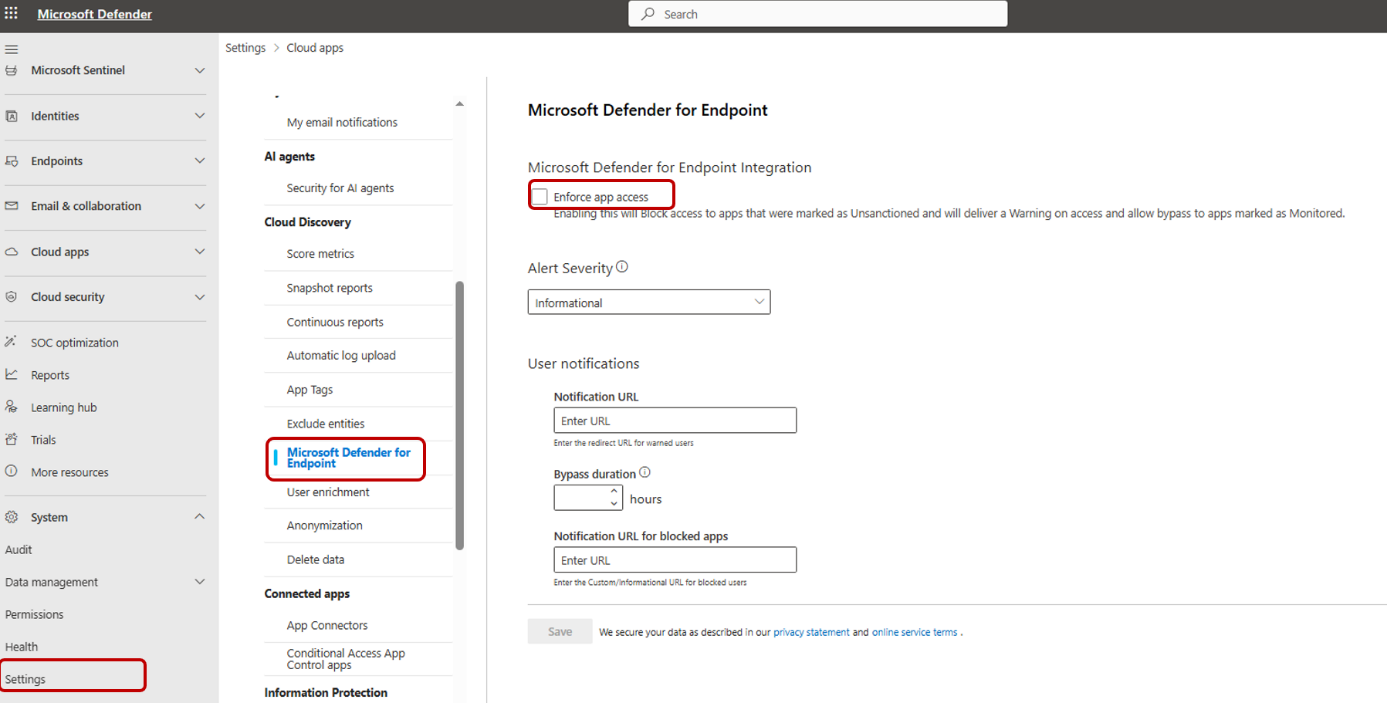
On the Defender for Cloud Apps side (Settings → Cloud Apps → Microsoft Defender for Endpoint):
- Enable Enforce app access (Block unsanctioned apps) — this activates the sync of Unsanctioned app domains to MDE as block indicators.
Once both sides are active, it can take a few hours before the first Cloud Discovery data becomes visible.
Note on SSL inspection: If you have a proxy performing SSL inspection, exclude the MDE agent’s endpoints from inspection. SSL inspection on Microsoft cloud service endpoints disrupts the cloud-app telemetry and creates false negatives in Cloud Discovery.
App Governance: Sanctioned, Monitored, Unsanctioned
Every discovered app can be assigned one of three states. Understanding the distinction matters because the enforcement mechanism and user experience differ significantly:
| State | MDE Indicator | User Experience |
|---|---|---|
| Sanctioned | None — no indicator created | No impact on the user |
| Monitored | Warn type indicator | Full warning page in Edge; toast notification in Chrome. User can click through. |
| Unsanctioned | Block execution indicator | Full block page in both browsers. No bypass option. |
For the Monitored state, configuring a custom redirect URL is important. Instead of a generic Microsoft block page, you redirect the user to an internal SharePoint page explaining why the app is restricted and what the approved alternative is (e.g., “This AI tool is not approved — use Microsoft Copilot instead”). This significantly reduces helpdesk tickets and improves user adoption of security controls.
Cloud Discovery Governance: Risk-Score Based Auto-Blocking
For general shadow IT governance, we apply a risk-score-based auto-block policy targeting apps with a risk score of 0–3. These are apps with serious deficiencies: no encryption, no privacy policy, or known malware associations.
One important callout: don’t try to govern all internet traffic via this mechanism. The MDCA catalogue scores many well-known websites at 5 or below because they don’t expose enterprise-grade security disclosures. Sites like ns.nl, shein.nl, and popular news sites score at 4–5. Applying a blanket block below 5 will create significant operational noise and end-user friction without meaningfully improving security posture.
The correct approach is to scope governance to:
- Actually-used cloud applications (sourced from Cloud Discovery data).
- Specific high-risk categories (cloud storage, file sharing, newly detected apps).
- Generative AI applications (separate policies, see below).
- OAuth applications (separate governance model, see below).
GenAI App Governance: A Three-Tier Policy
Generative AI is the most pressing shadow IT problem right now. Employees actively seek out and use AI tools, many of which are legitimate productivity enhancers. A blanket block approach creates friction without reducing risk meaningfully — users will find workarounds. A smarter approach uses the MDCA risk score to apply graduated controls.
Use the Generative AI app category filter in Cloud Discovery to scope policies specifically to AI tools. Apply a three-tier model:
- Score 8–10 (low risk, well-known tools): Sanctioned — allow without friction.
- Score 4–7 (moderate risk): Monitored — warn with a redirect to your approved alternatives page, but allow bypass for users who acknowledge the risk.
- Score 0–3 (high risk, poor security posture): Unsanctioned — block and redirect to your policy page.
This approach lets your organization benefit from legitimate AI productivity tools while blocking the long tail of poorly-secured AI services where data protection guarantees are absent.
OAuth App Governance: Catching Dangerous Permissions
The app connector and shadow IT layers cover network-level risks. OAuth app governance addresses a different threat vector: third-party applications that users or developers authorize against Microsoft Graph with high-privilege permissions.
The most dangerous OAuth grants are ones that go unnoticed until they’re abused. We configure an App Discovery policy that alerts on new OAuth apps requesting any of the following permissions:
| Permission | Risk |
|---|---|
Mail.ReadWrite | Full access to all mailboxes — primary BEC and exfiltration path |
Sites.FullControl.All | Full control over all SharePoint/OneDrive content |
AppRoleAssignment.ReadWrite.All | Can grant itself any Graph permission — effective Global Admin |
Policy.ReadWrite.PermissionGrant | Can disable consent guardrails |
UserAuthenticationMethod.ReadWrite.All | Can modify MFA for any user including Global Admins |
BitlockerKey.Read.All | Access to all BitLocker recovery keys |
Exchange.ManageAsApp | Full Exchange admin — enables silent mail forwarding rules |
User.ManageIdentities.All | Can federate external identity providers onto any account |
AccessReview.ReadWrite.All | Can approve own privileged access — bypasses PIM governance |
The policy alert is configured with a daily limit of 5 per policy (to avoid alert fatigue) and sends to a security mailbox for triage.
Monitoring Policies: What Else to Watch
Beyond GenAI and OAuth, these built-in MDCA policy templates are worth enabling (scope them according to your environment):
App Discovery policies:
- New popular app (>500 users) — spots emerging shadow IT before it becomes entrenched.
- New high-volume app (>500 MB/day total traffic) — catches data-heavy apps that may indicate bulk uploads.
- New high upload volume app (>500 MB/day uploads) — potential exfiltration indicator.
- New risky app (score <6, >50 users, >50 MB/day) — risk-based early warning.
- Cloud storage compliance check (SOC2/PCI DSS non-compliant, >50 users).
Activity policies:
- Mass download by single user (>50 downloads in 1 minute).
- Potential ransomware activity (file extensions suggesting encryption behavior).
- Multiple failed login attempts (>10 failures in 5 minutes on a single app).
File policies:
- File shared with personal email addresses.
All alert policies should route to a monitored shared mailbox, not individual inboxes, to ensure coverage during leave and role changes.
Final Thoughts
Defender for Cloud Apps works best when you resist the temptation to apply it as a blunt instrument. The risk score catalogue is a starting point, not a complete allow/block list for the internet. Start with the MDE integration and Cloud Discovery visibility, build your GenAI governance policies, add the OAuth alerting, and progressively extend governance to additional app categories based on what you actually see in your environment.
References:
- Jeffrey Appel — Block low reputation apps or newly detected cloud apps with MDE, MCAS and Endpoint Manager
- Derk van der Woude — Granular Access to GenAI Apps with Defender for Cloud Apps
- Microsoft Learn — Defender for Cloud Apps documentation